TUTORIAL: How to install PHP and MySQL on IIS

  • ATNO/TW
  • Super Moderator
  • Super Moderator
  • User avatar
  • Joined: 28 May 2003
  • Posts: 19342
  • Loc: Pittsburgh PA
  • Status: Offline

Post December 16th, 2005, 1:13 pm

With the apparent increase of interest in individuals desiring to install PHP and MySQL on computers running Windows operating systems, I thought it would be beneficial to provide a set of instructions to help make this process as easy as possible. In this article, I’ll be providing some basics of IIS installation and then move to the installation of PHP and MySQL.

Some essentials you will need to get started:
IIS (preferably IIS 5 or IIS 6)
The PHP windows installer file
The PHP binaries file
The MySQL Windows installation file
(links will be provided for the downloads shortly).

Optional:
phpMyAdmin
MySQL Administrator

Let’s get started. Since you are installing on a Windows computer, you will most likely be using IIS for a web server, however, it is not required. You must have some web server running however, and you are quite welcome to use Apache or another web server of your choice, however, since that falls outside the scope of this tutorial we will leave that discussion for another day.

Some things to know about IIS. IIS v5.1 is included with Windows 2000 Professional, and Windows XP Professional, but is not installed by default. (*note – IIS 5.1 is not included with XP Home edition and is not available as a stand alone download from Microsoft. If you are an XP Home user, you will need to look for an alternative web server solution.) Windows 2000 server includes IIS 5.1, and Windows 2003 server includes IIS 6.

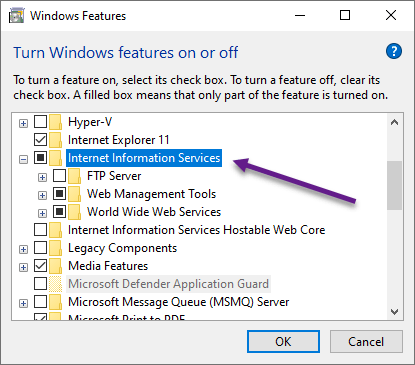
If you haven’t already done so begin by installing IIS. To do this go to Control Panel | Add/Remove Programs | Add/Remove Windows Components. In the dialogue box that comes up, check the option for Internet Information Services(IIS) and click the “Details” button. Select any additional features that would like to have installed and click OK. Click OK again to begin the installation. This will install IIS and start the web server service automatically. You should not need to reboot. To test your installation open your web browser and type in http://localhost/ . This should bring up the default IIS page. If it does, your installation was a success and you can immediately get started on installing PHP.

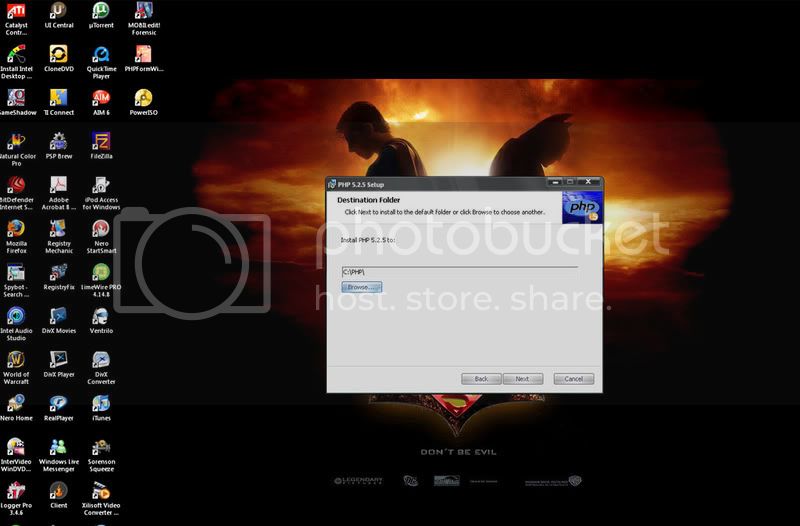
It really shouldn’t matter whether you install PHP first or MySQL first. I’ve simply gotten into the habit of beginning with PHP, so that will be my next step. To get the files you will need, go to the download page at php.net . The most current release available for download at the time of this writing is 5.1.1. This release has worked just fine for me, so it’s the one I use. You will want to download both the PHP 5.1.1 zip package AND the PHP 5.1.1 installer. Unzip both files to a temporary location and run the setup installer. This will install PHP automatically. The default installation directory is C:\PHP and I would suggest to leave it at that, unless there is a specific reason you need to install it elsewhere. *note it is not recommended to install PHP in a directory that contains spaces such as c:\Program Files\PHP as it can cause some web servers to crash. Answer the questions as they are presented by the wizard. I recommend choosing the option to add PHP to the Windows PATH environment variable when that option is presented. If not you can manually add it later, but you really should include it. For a good article on Windows environment variables go here . When the installer completes you will have a basic installation of PHP. This works just fine, but it is recommended to add the additional libraries found in the PHP 5.1.1 zip package. Simply copy those files into the C:\PHP directory. The following files in this package are already installed with your PHP and there is no need to copy them install.txt, license.txt, php.exe and php4ts.dll.

To test your PHP installation copy the following into a file and save it as info.php in c:\Inetpub\wwwroot\ . (wwwroot is Windows IIS default website folder. Any of your web files will always go in there)
  1. <?php phpinfo(); ?>

Then go to your web browser and type: http://localhost/info.php . If your installation was successful, this should display your PHP configuration information.

Now we can proceed to installing MySQL. Go to the MySQL download page here. . As of this writing the most current release is v5.0.16. Download the Windows(x86) file (the 33.6MB file). This is the full package and includes the installer. Unzip it to a temporary location and run the installer. For the most part, especially for someone doing this the first time, it’s easiest to use the standard installation. This will essentially configure all the basic things you need to have MySQL work. During the configuration you will be asked which port to use. The default port 3306 is usually fine, however if you know something else is already using that port, you can select another one. Your “super” user that will be created during the install is user “root”. Root is the chief administrative username and can do anything in MySQL. You can add other users later after you’re up and running, but root is going to be your main admin access. Remember the root password you use. If you lose or forget it, there is no way to access it, and you could find yourself unable to use MySQL. Complete the wizard. Now let’s test it to make sure it’s working. Go to Programs | MySQL | MySQL Server 5 | MySQL Command Line Client. This is a utility similar to DOS for managing MySQL. At the password prompt type in the password you entered and hit enter. If your server is working properly you should get something that looks like this:
Quote:
Enter password:
Welcome to the MySQL monitor. Commands end with ; or \g.
Your MySQL connection id is 1 to server version: 5.0.16-nt

Type 'help;' or '\h' for help. Type '\c' to clear the buffer.

mysql>

If you see that, your installation was successful. You can type quit or exit to close the Client.

Now there are some purists out there that probably swear by that command line client and use it exclusively for managing their server. However, for us spoiled Windows dummies that are used to “easy-to-use” GUI’s there is an alternative good tool for your server management - MySQL Administrator which can be downloaded from HERE . The installation is very straightforward. After it’s installed simply run it. For your logon the host would be localhost, the port would be the port you used when installing MySQL (default 3306) and the user would be root with the password you gave on installation. Since administering your MySQL server is beyond the scope of this article, we’ll leave that for another day, however, you’ll see very quickly the ease with which you can add users and create and manage your databases.
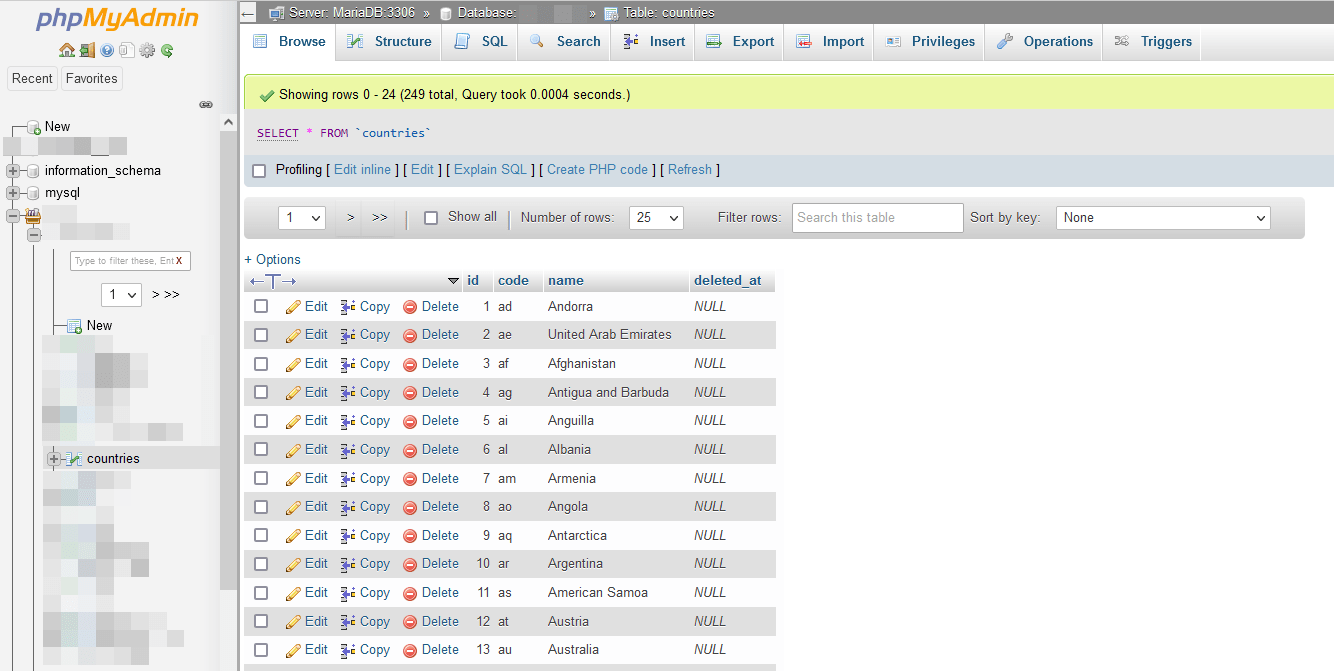
The last tool that I listed as optional, I actually couldn’t live without it, and that is phpMyAdmin which can be downloaded HERE . Simply unzip the contents to a temporary directory. Create a folder called phpMyAdmin in c:\Inetpub\wwwroot\ and copy your extracted phpMyAdmin download files in there. Then open config.default.php in an editor and edit the following as needed.
Make sure the port number here $cfg['Servers'][$i]['port'] = '3306'; matches the port you used when installing MySQL. If you are going to only be using this as a development machine and it will not be connected to the internet or accessible from the internet use the following configuration for these three lines:
  1.  
  2. $cfg['Servers'][$i]['auth_type']     = 'config';    // Authentication method (config, http or cookie based)?
  3. $cfg['Servers'][$i]['user']          = 'root';      // MySQL user
  4. $cfg['Servers'][$i]['password']      = 'yourpassword';          // MySQL password (only needed
  5.                                                     // with 'config' auth_type)


If this will be accessible from the web, you’ll most likely want to use HTTP authentication, in which case change config to http and leave user and password empty. Save the file as config.inc.php in your phpMyAdmin folder.

For some reason on a Windows machine, phpMyAdmin seems to want access to php_mbstring.dll . To solve this open c:\Windows\php.ini (or WINNT if Win2K) and find the following:
; Directory in which the loadable extensions (modules) reside.
extension_dir = "./’
Change that to
; Directory in which the loadable extensions (modules) reside.
extension_dir = "./extensions/"

Then scroll down to this line and uncomment it (remove the leading semi-colon)
extension=php_mbstring.dll

Now, in theory you should be able to go to http://localhost/phpMyAdmin/index.php and you should be working. “In Theory”. However, I’ve done four Windows installations on Win2K, XP and Windows 2003 Server machines, and this is where I always run into a snag. For some reason, there seems to be a bit of a problem with the MySQL authentication protocol that it doesn’t like. Since one of our members recently had this problem and rather than retyping everything, simply read the post here for the workaround to this:
ftopic55568.html

Well, that was a bit lengthy, but if all went well, now you should be happily ready to start serving up PHP pages on your Windows computer. My turorial may not include every specific detail, nor will it answer every problem you might encounter. But it should get you to where you have a good installation.

If anyone has additional information, feel welcome to add it. Good luck with your install!
  • Anonymous
  • Bot
  • No Avatar
  • Joined: 25 Feb 2008
  • Posts: ?
  • Loc: Ozzuland
  • Status: Online

Post December 16th, 2005, 1:13 pm

  • Axe
  • Genius
  • Genius
  • User avatar
  • Joined: 07 Jan 2004
  • Posts: 5783
  • Loc: Sub-level 28
  • Status: Offline

Post December 17th, 2005, 10:54 am

Good info for getting a lil personal web server up for local testing, or development! :)
John
» PHP Scripts & Resources » Free Photoshop Tutorials
» Anybody wanna pay my mortgage? PM me!
  • ATNO/TW
  • Super Moderator
  • Super Moderator
  • User avatar
  • Joined: 28 May 2003
  • Posts: 19342
  • Loc: Pittsburgh PA
  • Status: Offline

Post December 17th, 2005, 11:01 am

Thanks. I've been through four installs of this in the last couple months and none of them were flawless the first run through, so I figured I'd give a little rundown on the most effective way to do it without having all the issues I had to look up.
  • this213
  • Guru
  • Guru
  • User avatar
  • Joined: 01 Mar 2004
  • Posts: 1183
  • Loc: ./
  • Status: Offline

Post December 19th, 2005, 6:50 am

You should sticky this before it gets lost in the other threads
  • ATNO/TW
  • Super Moderator
  • Super Moderator
  • User avatar
  • Joined: 28 May 2003
  • Posts: 19342
  • Loc: Pittsburgh PA
  • Status: Offline

Post December 19th, 2005, 6:58 am

Good suggestion. I went ahead and did just that.
  • Vincent
  • Expert
  • Expert
  • User avatar
  • Joined: 01 Dec 2005
  • Posts: 722
  • Loc: Brisbane, Australia
  • Status: Offline

Post December 19th, 2005, 2:07 pm

Have you though of upgrading this sometime to have different tutorials of different programs, eg. apache?
  • this213
  • Guru
  • Guru
  • User avatar
  • Joined: 01 Mar 2004
  • Posts: 1183
  • Loc: ./
  • Status: Offline

Post January 15th, 2006, 6:17 pm

Vincent wrote:
Have you though of upgrading this sometime to have different tutorials of different programs, eg. apache?

I've been handing this link around which deals with Apache, Perl, PHP, MySQL, and PostgreSQL on a Windows system:
hxxp://www.semitekie.com/viewtopic.php?t=8

*edit*
I've since removed phpBB from this site, so this is gone now. Sorry
Ribosi Inc - Information Technology Services
  • fullfocus
  • Newbie
  • Newbie
  • No Avatar
  • Joined: 08 Apr 2006
  • Posts: 9
  • Status: Offline

Post April 8th, 2006, 4:13 pm

Hello:

I followed theinstructions on installing PHP and MySQL written in this post.

I have run into a problem installing phpMyAdmin.

When I go to my browser and type: http://localhost/phpMyAdmin/index.php, I receive the following error message:

Cannot load <a href="http://php.net/mysql" target="Documentation">mysql</a> extension. Please check your PHP configuration. - <a href="./Documentation.html#faqmysql" target="documentation">Documentation</a>

I read this material and I still am not quite sure what to do to fix the problem.

Can you please help me out?
Thank you in advance.
  • ATNO/TW
  • Super Moderator
  • Super Moderator
  • User avatar
  • Joined: 28 May 2003
  • Posts: 19342
  • Loc: Pittsburgh PA
  • Status: Offline

Post April 8th, 2006, 7:55 pm

Check the accepted answer here (scroll down to see replies)
http://www.experts-exchange.com/Databas ... 23797.html

Although that problem is with Linux, the solution is most likely the same on Windows.
  • fullfocus
  • Newbie
  • Newbie
  • No Avatar
  • Joined: 08 Apr 2006
  • Posts: 9
  • Status: Offline

Post April 9th, 2006, 4:23 am

Hi,

Thank you for the reply. I clicked on the link you gave me and scrolled down the screen and there weren't any replies. All I get is a button to View Solution and in order to view the solution I have to subscribe.

Is there any other way I can check out the solution?

Thanks.
  • ATNO/TW
  • Super Moderator
  • Super Moderator
  • User avatar
  • Joined: 28 May 2003
  • Posts: 19342
  • Loc: Pittsburgh PA
  • Status: Offline

Post April 9th, 2006, 6:15 am

Strange. It was there when I just opened it in one window and now it's not. Anyway, the accepted answer was

Quote:
After installing PHP on Redhat, add the package it is asking for (PHP-MySQL), then edit the php.ini file (you will find it in /etc/php.ini). Scroll down to the "Dynamic Extensions" section and remove the semicolon beside the line: extension=mysql.so

After that restart the httpd service (service httpd restart) then try to install PHPMyAdmin again. This should make the installation complete without problems.


Also from the documentation this is what it says about that error


Quote:
"To connect to a MYSQL server PHP needs a set of Mysql fucntions called the "Mysql extension".This extension may be a part of the PHP distribution otherwise it needs to be laoded dynamically .Its name is probably mysql.so or php_mysql.dll .PhpMyadmin tried to load the extension but failed.

Usually the problem is solved by installing a sofware package called "PHP-MYSQL'" or something sililar
  • fullfocus
  • Newbie
  • Newbie
  • No Avatar
  • Joined: 08 Apr 2006
  • Posts: 9
  • Status: Offline

Post April 9th, 2006, 6:51 am

Hello:

Thank you for the reply. I thought it was strange as well.

I finally got it to work. Apparently, I needed to create a config.inc.php file in my main phpMyAdmin directory. Copy the contents of config.default.php into this file. Then, make changes in the config.inc.php file to: host, user, password, authentication mode, and pmaAbsoluteUri. I then needed to go to my php.ini file and make the following changes: remove the semicolon in front of extension=php_mysql.dll and set the path for the extension directory (extension_dir="C:/php/ext").

I was then able to start the phpMyAdmin file (index.php) and there it was.

To solve this problem, I had to grab bits and pieces of solutions from various places. Phew, it was a lot of digging.

Thanks for the help.
  • ATNO/TW
  • Super Moderator
  • Super Moderator
  • User avatar
  • Joined: 28 May 2003
  • Posts: 19342
  • Loc: Pittsburgh PA
  • Status: Offline

Post April 10th, 2006, 5:45 am

Thanks for providing the solution. The thought that you hadn't done the config.inc yet never occurred to me, but that would certainly gum up the works *lol Glad you got it.
  • fullfocus
  • Newbie
  • Newbie
  • No Avatar
  • Joined: 08 Apr 2006
  • Posts: 9
  • Status: Offline

Post April 10th, 2006, 6:54 am

Hi,

The solution actually came for the documentation that came with phpMyAdmin. I tried the setup.php as suggested but all I got was the file being opened in Dreamweaver. So, I disregarded that idea.

Thanks again for the help.
  • nooniensingh
  • Newbie
  • Newbie
  • User avatar
  • Joined: 14 Apr 2006
  • Posts: 5
  • Status: Offline

Post April 14th, 2006, 9:53 pm

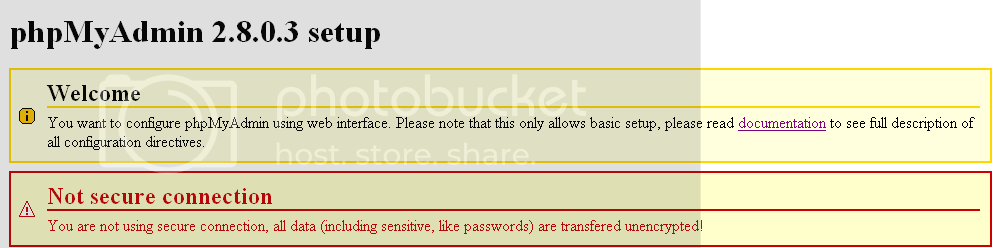
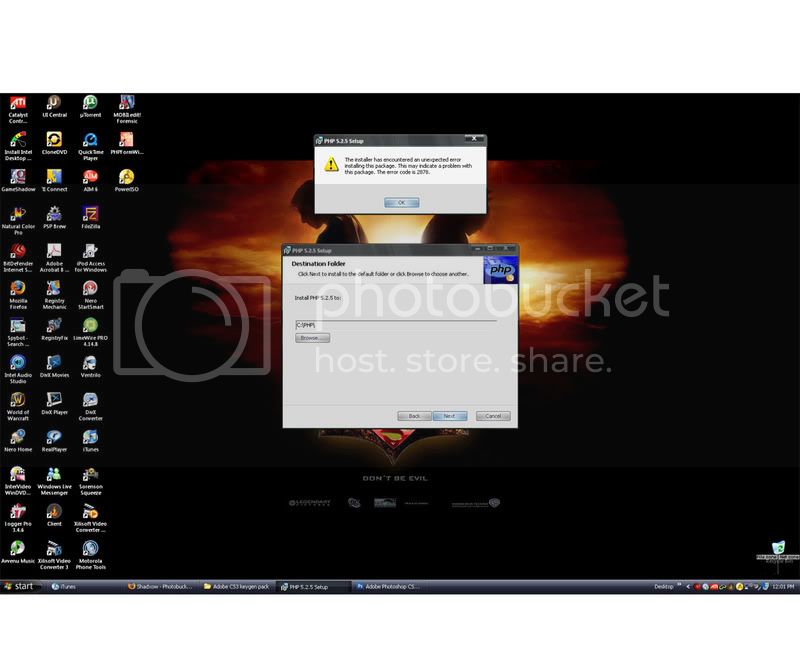
I am getting this error after applying your instruction:
Image

------------------------------EDIT---------------------------------------------------------
Ok I changed everything back to the orignal state and I get no errors however
a window pops up asking me where do I want to save index.php. I s supposed to happen?
  • Anonymous
  • Bot
  • No Avatar
  • Joined: 25 Feb 2008
  • Posts: ?
  • Loc: Ozzuland
  • Status: Online

Post April 14th, 2006, 9:53 pm

Post Information

  • Total Posts in this topic: 142 posts
  • Moderators: joebert, katana
  • Users browsing this forum: rougy and 69 guests
  • You cannot post new topics in this forum
  • You cannot reply to topics in this forum
  • You cannot edit your posts in this forum
  • You cannot delete your posts in this forum
  • You cannot post attachments in this forum


© Unmelted Enterprises 1998-2008. Driven by phpBB © 2001-2008 phpBB Group.


Need a pre-made web design for your website?

Check out our templates here: Ozzu Templates


400+ FREE Website Templates. Download Now!