

What is Windows PowerShell?
If you've been around Microsoft Windows any length of time, you've most likely seen or at least heard about the "Command Prompt" which, in Windows NT-based Operating Systems (Win2K and beyond), is executed via CMD.exe. Windows PowerShell is a similar relatively new command-line shell and is available to any Windows user (assuming you are using one of the supported operating systems listed below). However, PowerShell was particularly designed for system and network administrators.
How or where can you get PowerShell 1.0?
PowerShell 1.0 has actually been available as a standalone download from Microsoft since about October of 2006. It is available at this link: https://github.com/PowerShell/PowerShell. You'll need to choose the platform for your operating system. Supported operating systems are X86 and X64 versions of XP SP2 / SP3, Vista and Windows Server 2003 (an Itanium version is also available for 2003 Server). In addition, Microsoft has recently made it available as an optional download via Microsoft Update (Windows Update).
*note of interest – PowerShell 2.0 is (as of this writing) at Community Technology Preview 3 (CTP3) stage and is available also for download. PowerShell 2.0 will also support Windows 7 and Windows Server 2008.
What is different about PowerShell 1.0?
I don't know if I can describe it any better than the Microsoft "Getting Started" documentation does (the documentation is installed along with PowerShell):
"Unlike most shells, which accept and return text, Windows PowerShell is built on top of the .NET common language runtime (CLR) and the .NET Framework, and accepts and returns .NET objects."
In addition PowerShell includes over 100 functions called "cmdlets". These can be used individually or combined for more complex operations.
How do I run the application?
There are several ways to run PowerShell. When it installs it creates a program group under Start || All Programs || Windows PowerShell 1.0 and can be run from there. You can also create a Desktop shortcut for it (which is not created during installation). It can also be run from Start || Run by simply typing powershell or powershell.exe and clicking OK. When it opens, you'll notice that it is not unlike the Window opened by CMD. If you run it from the program group, you'll notice that it opens larger and with prettier colors than the typical black and white CMD window, but otherwise it looks comfortably familiar.
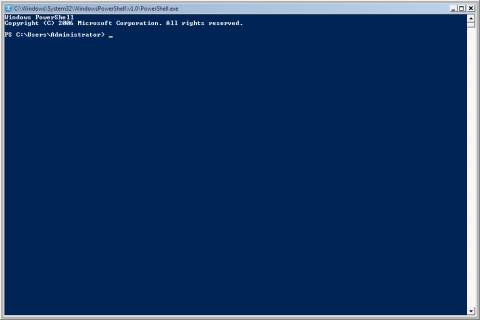
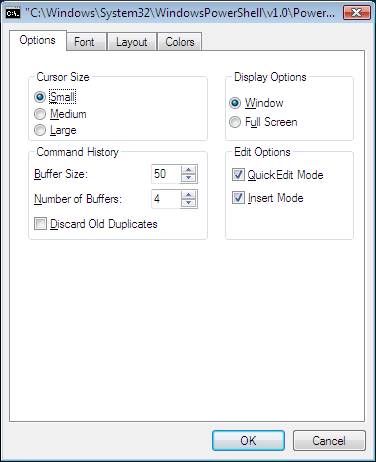
Default colors, background, fonts, size, etc., of the window, maybe altered the same way as the CMD window can, by right-clicking a blank spot on the top toolbar, selecting Properties, and adjusting the settings to your preference.
Can I use it just like the Command Prompt I'm used to?
Yes and no. Mostly no. You'll still find many of the tools that you may be used to such as DIR, CD, NET, COPY, REN, and others. However, the first thing you'll notice if you type help at the "PS" prompt is that they are all now aliases of cmdlets. For example, you'll notice that DIR is an alias of get-ChildItem. Both will list the contents of the current directory. Go ahead, try it. Type dir and get-ChildItem one after the other (like CMD you'll need to press enter to execute it). You'll notice the results are identical.
Now type get-help dir and then get-help get-childitem (like CMD, case is not critical). You'll notice the descriptions, syntax, etc., are identical. You'll also notice that all of the "switches" that used to be available for dir are gone (try them if you want – they won't work). Let's try one more. Type get-alias | where-object {$_.Definition -match "Get-Childitem"}. This will produce a list of all the aliases for Get-ChildItem, which you'll see not only includes dir, but also ls and gci. In addition, if you don't like those, PoSh (PowerShell nickname / acronym) allows you to create your own aliases, with set-alias.
What else can it do?
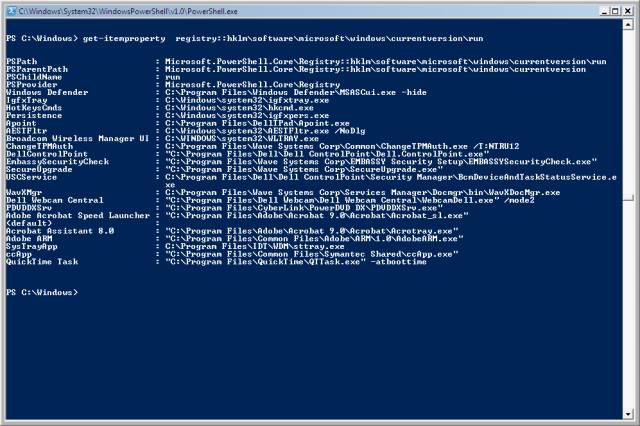
This is not intended to be a user manual, however, I would like to point out one additional feature that I use frequently, and that is the ability to list Registry content right in the PoSh window. For example:
get-itemproperty registry::hklm\software\microsoft\windows\currentversion\run
lists all of the properties of the run key in HKLM and their parameters. To me, that is just so much faster than navigating the registry tree and it's something I am already using frequently, specifically when troubleshooting malware issues on a computer. In addition to viewing registry keys and properties, it is also possible to modify, add, and remove registry items (currently only the HKLM and HKCU hives are available to PoSh). Here's another screenshot.
Conclusion.
In summary, this article is primarily written for Windows users who have never heard of PowerShell, or who have simply not taken the time to use it to give you a bit of familiarity with it. In particular, if you are a network or system administrator, I hope this motivates you to actually take the time to use it and learn what can be done with it.
This page was published on It was last revised on
