

If you use an iPhone and enjoy receiving push notifications from other apps to alert you of something important to you, I wanted to explain how you can also do this with Ozzu.
For example, I like being notified immediately when someone triggers certain events, such as someone responding to my post, or a new thread being created. Now of course you could have email or browser-based notifications sent to your desktop, but you can also set this up to work on your iPhone too.
I will go through the procedure below on how you can get this to work on the iPhone.

Open Ozzu in Safari Browser
First you will need to go to your Safari browser on the iPhone, and then load up ozzu.com. If you have ever visited Ozzu before on your iPhone, this would be nothing new at this point.
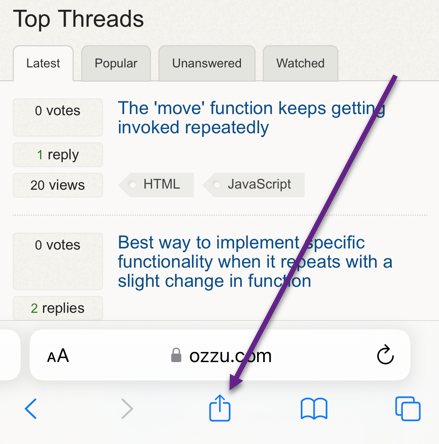
Click on the share Icon
This is where things start to get interesting. Click the bottom middle icon with an arrow coming out of it. This is the icon you typically use to share to others, but it is also the place where you can "share" it to your home screen.
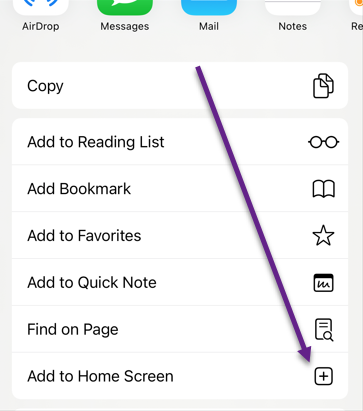
Scroll down and click on Add to Home Screen, then click the add button:
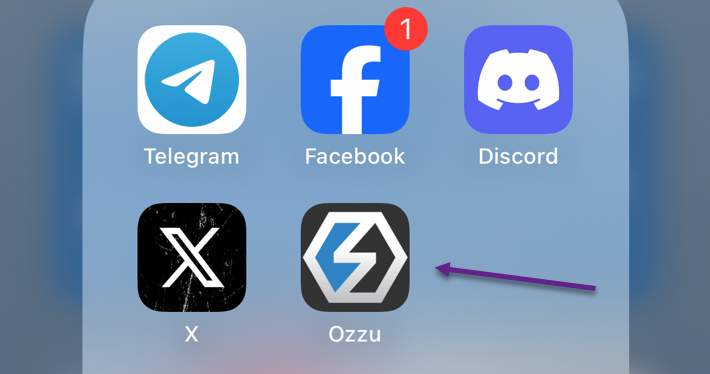
At this point you can now exit Safari and go to your home screen. You should see the Ozzu icon probably at the very end of all your apps. If you have pages of apps, you may need to thumb right a few times until you find the newly added Ozzu app. From here move the move the Ozzu APP icon wherever you want if you like to stay organized.
Load the Ozzu App
Click the new APP icon to load Ozzu. This is a progressive web app at this point, so you will notice that it has more real estate (just like any other APP) since you will no longer see the Safari navigational elements. All of the screen space is dedicated for Ozzu when its via the dedicated APP.
Configure Notifications
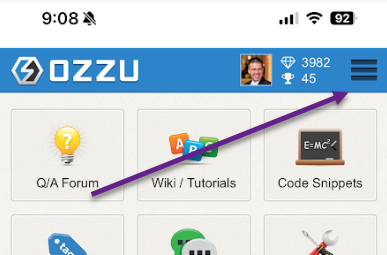
Now we need to navigate to the area in Ozzu where you can setup push notifications. Continuing in the Ozzu APP, click hamburger menu, go to account settings, and click on Notifications.
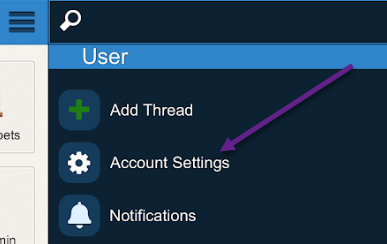
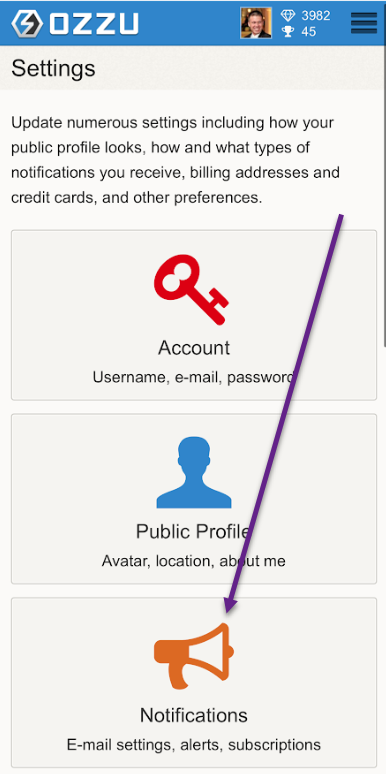
Setup Notifications
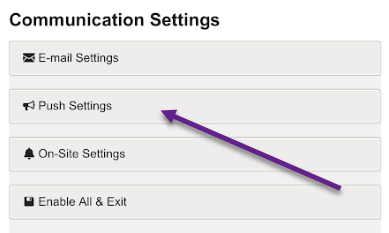
Now that we are in the correct section, we need to configure what sort of push notifications you want to receive. Click on Push Settings:
Then select the ones you want to Push:
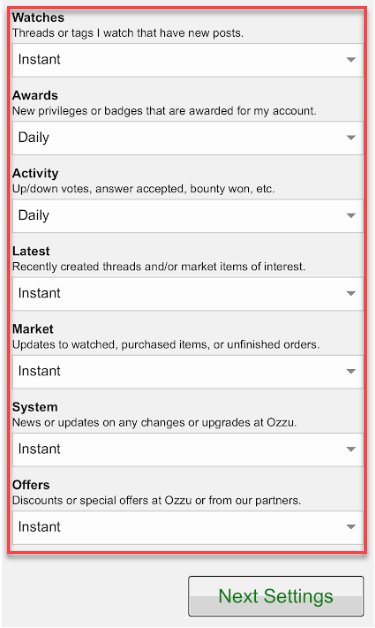
If you select instant, you will receive those notifications instantly via Push when the event happens. I typically use this for the events I am most interested in. If you like to still receive some push notifications, but perhaps limited to once an hour or once a day then you might choose the other option. Or perhaps some of these you don't care about at all, select Off for those.
Click Next Settings, and then Save Settings & Close. Finally click to confirm that you want push notifications via the Iphone.
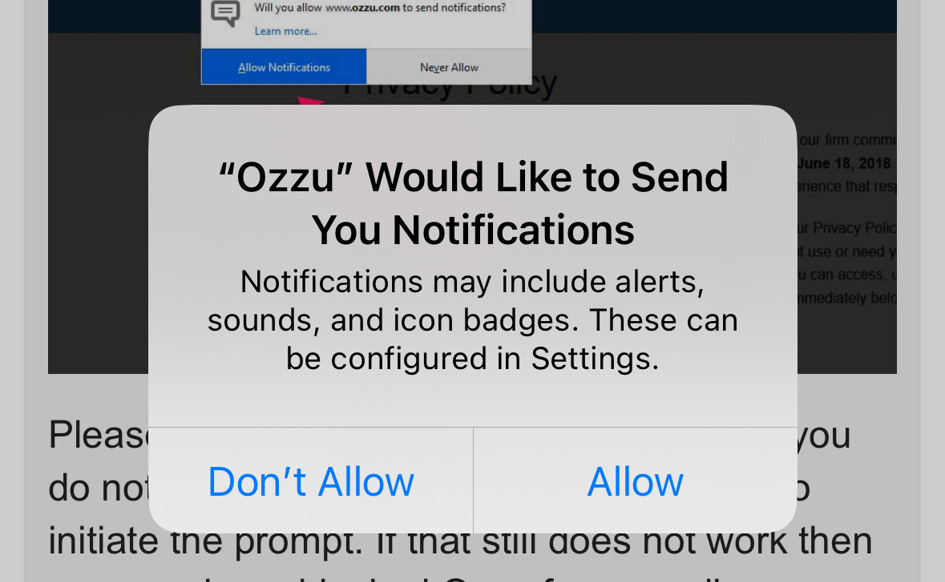
To explain a bit further, Ozzu has the technical implementations in place to be a progressive app. This should already work natively with Android as well, but with the iPhone they make you take a few more steps by having it added to your home screen as well. At this point Ozzu is essentially in APP mode like any other APP that you have installed. Once it's on the home screen the APP will then be allowed to send notifications (if you allow it).
-
1
I personally use an iPhone, and this is an excellent tutorial. I hate push notifications and the only ones I allow are SMS Text messages and incoming phone calls. I don't even allow notifications for incoming mail. But if I did, I would have been easily able to follow these instructions.
— Mark Bowker
-
1
And for those that don't want any notifications, half of the instructions at least show you how to get Ozzu as an APP which has less clutter on the page (no browser elements), and obviously accessing Ozzu quicker.
— Brian Wozeniak
add a comment