So far, we've learned that the Group Policy editor was removed from Windows 11 Home Edition. So how do we add it back?
This is a fairly simple process but does require a bit of patience. The execution of this method took nearly 4 hours to complete. I'll also add that this does require a persistent internet connection. While the script is running it is downloading and installing packages from the internet, so you can't do this if you are offline.
The first step is Copy the following code. Don't worry if you don't understand it. But you'll need to copy it in its entirety.
@echo off & Cls

(Net session >nul 2>&1)||(PowerShell start """%~0""" -verb RunAs & Exit /B)

pushd "%~dp0"

dir /b %SystemRoot%\servicing\Packages\Microsoft-Windows-GroupPolicy-ClientExtensions-Package~3*.mum >List.txt
dir /b %SystemRoot%\servicing\Packages\Microsoft-Windows-GroupPolicy-ClientTools-Package~3*.mum >>List.txt

for /f %%i in ('findstr /i . List.txt 2^>nul') do dism /online /norestart /add-package:"%SystemRoot%\servicing\Packages\%%i"


For /F %%B In ('wmic Os Get /Format:List ^| Find /I "Osarchitecture"') Do (Set Output=%%B)


If "%Output:~15,21%"=="64-bit"  (
    If Exist "%SystemRoot%\System32\gpedit.msc" (

    Goto :Skip

    ) Else (

    Copy "%SystemRoot%\SysWOW64\Gpedit.msc" "%SystemRoot%\System32"

    )

:Skip
Open Notepad and paste the code into it.
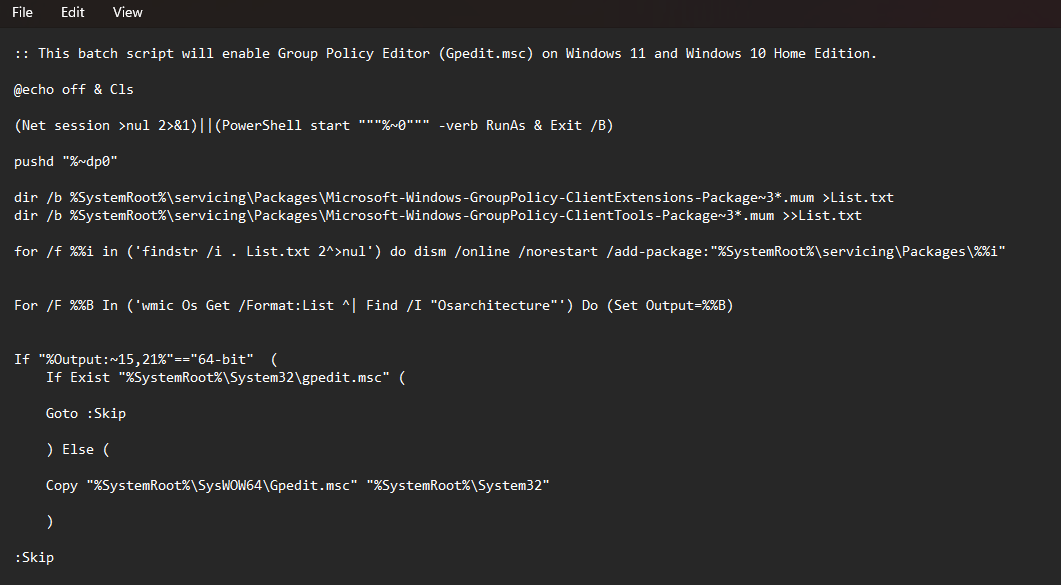
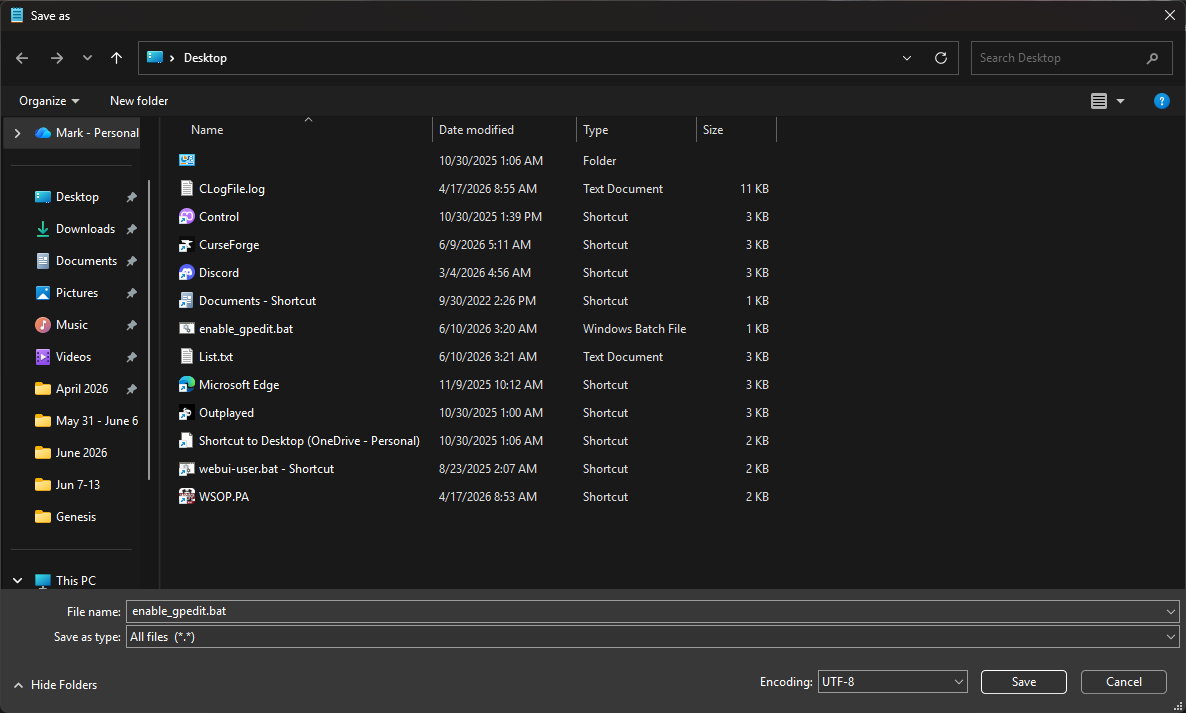
Click File > Save As and give it any name you want. I named mine enable_gpedit.bat
**Important note: you need to include the .bat file extension in the name*
Then change the "Save As" type from the default "Text Documents (.txt)" to "All Files".
I choose Desktop to where I want to save it to make it easier to find.
Example:
Now find the batch file you saved, right click it and choose "run as administrator" and allow the security prompt.
This will open a Command Prompt Window and start running the batch script. For reference the term Deployment Image Servicing Management Tool is also known simply as DISM.
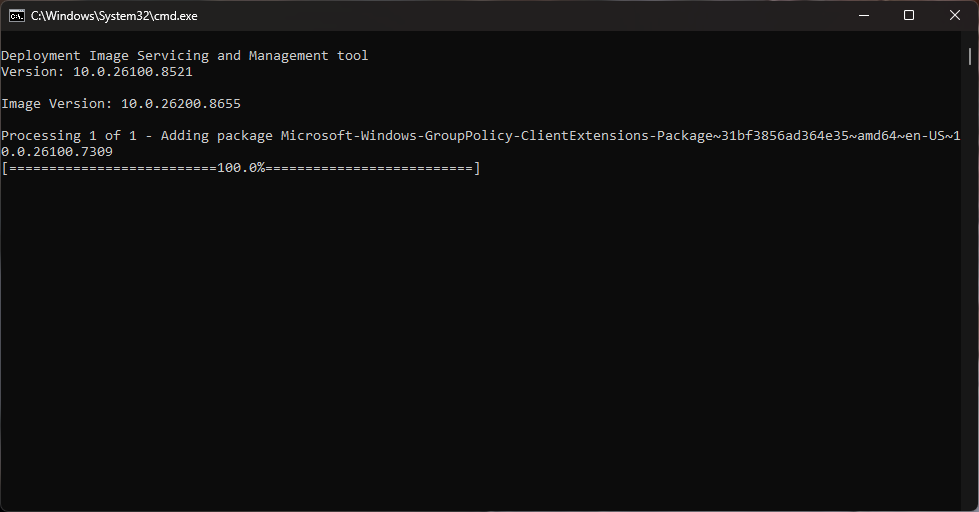
Remember when I said earlier this requires some patience. I have a gaming computer with a ton of RAM and awesome processor, but this really slowed my computer down and took nearly four hours to complete.
DO NOT close the Command Prompt window while it's running.
When it is completely finished running it will close the Command Prompt automatically. That's what the ":Skip" command does at the end of the script. Once the script completes you will need to restart your computer. When you're logged back in, hit the Winkey+R on your keyboard and type gpedit.msc and hit enter.
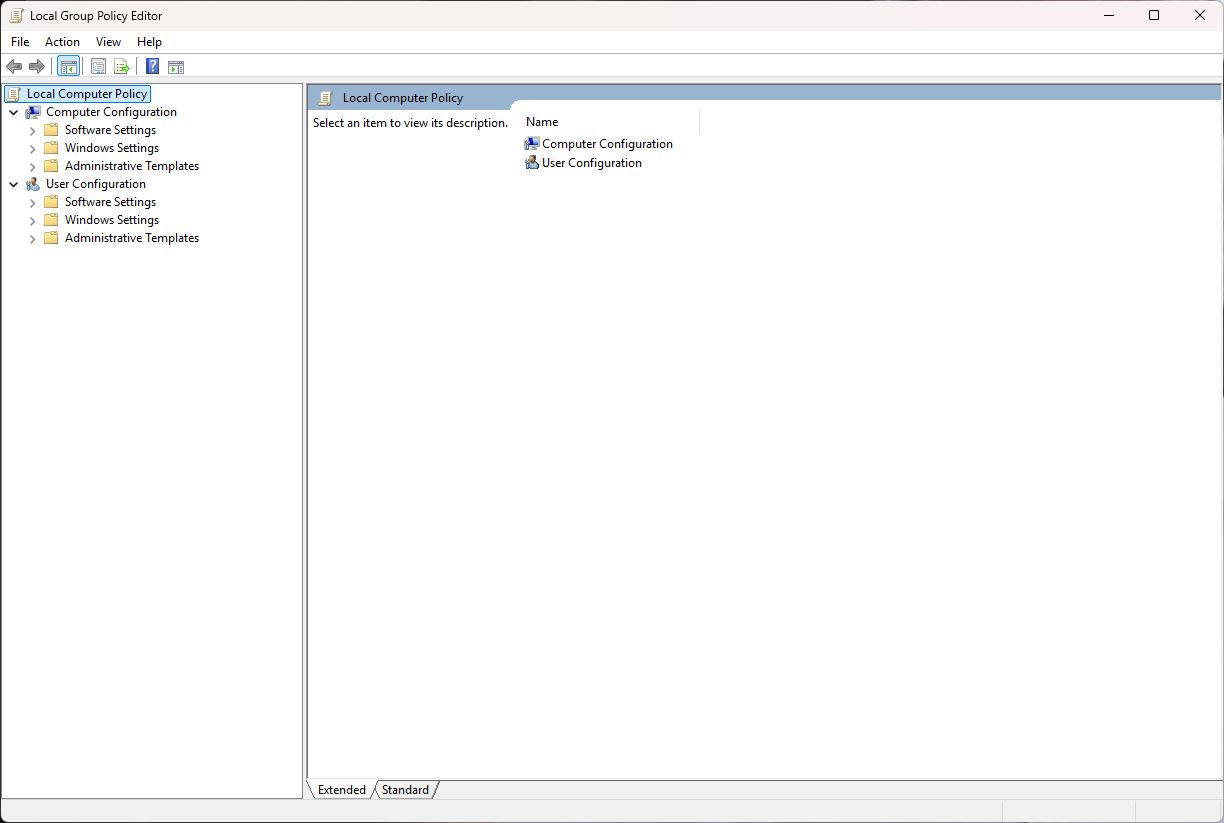
Congratulations! You now have the Group Policy Editor installed on your Windows 11 Home Edition PC!
(note: this also works on Windows 10 Home Edition)